
For members
Smart search — find anything, even by meaning
The search bar sits at the top of the app on desktop (look for the Smart badge); on mobile, tap the magnifying glass in the header.
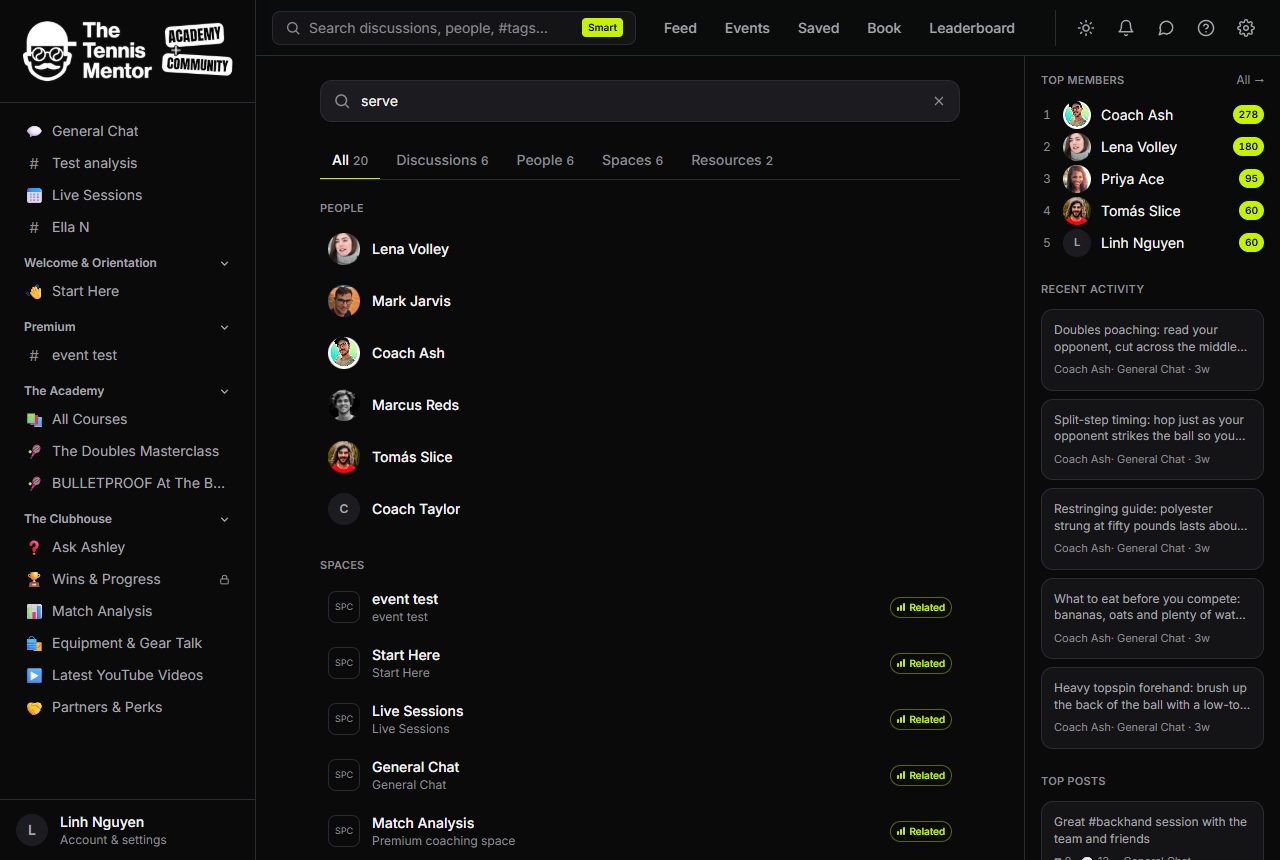
How to search
- Click the search bar — placeholder: Search discussions, people, #tags…
- Start typing. From two characters, suggestions appear live as you type.
- Use the arrow keys to move through suggestions, and press Enter to open one — or press Enter with nothing highlighted to see the full results page.
Results cover posts, comments, spaces, resources and people, each labelled by type. You'll only ever see content you have access to — search never leaks locked or private material.
Search by meaning, not just words
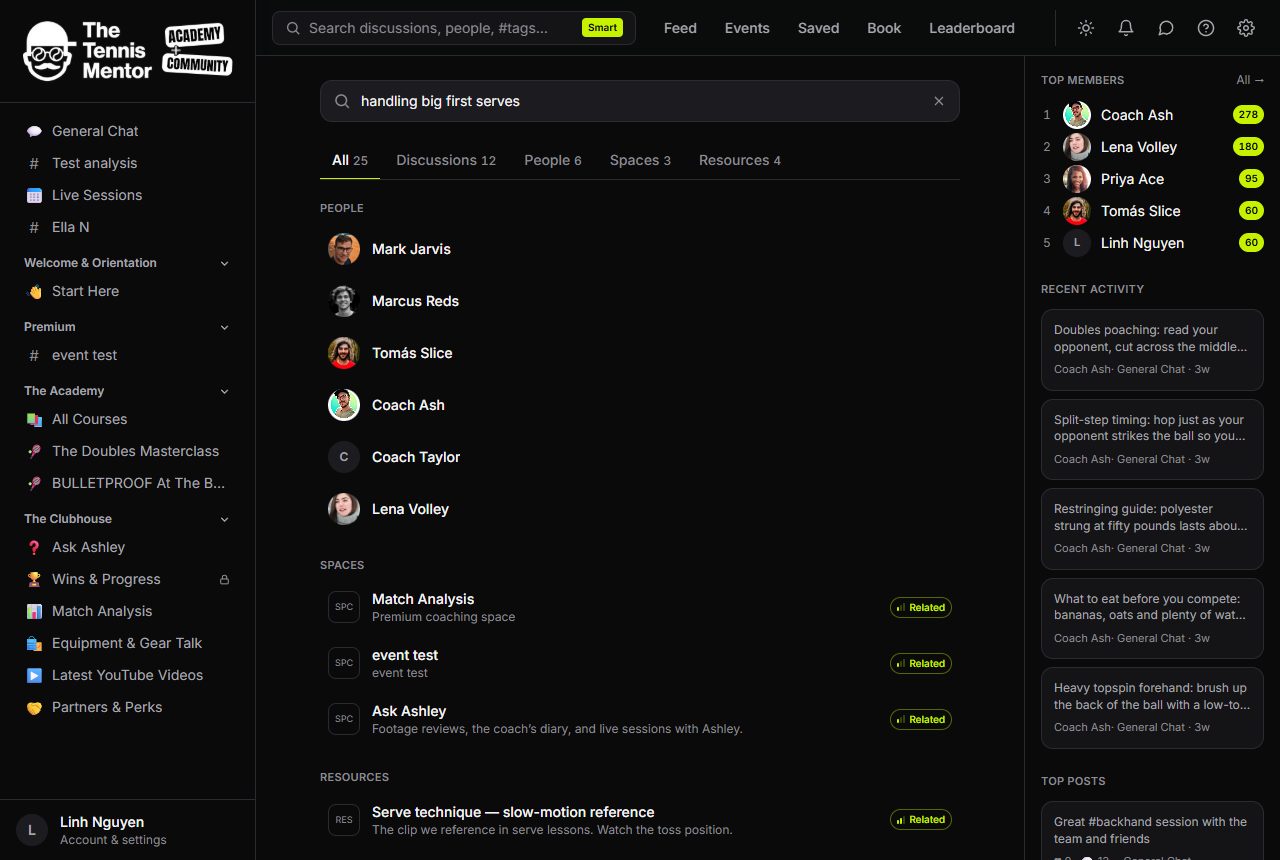
Search matches keywords, but it also understands meaning. Ask about "returning a fast serve" and it can surface a discussion about "handling big first serves" even though the words don't overlap. Those matches carry a Related cue with a strength meter showing how close the match is; keyword matches highlight the words that hit.
Hashtag search
Type a query starting with # (like #backhand) to see every post carrying that tag. Hashtags in posts are clickable too, and the full search page lists Top hashtags so you can browse what the community talks about most.
Recents and trending
Click into an empty search bar and you'll see:
- Recent — your last few searches, stored on your device only. Tap one to run it again.
- Trending tags — the busiest hashtags right now, one tap away.
If nothing matches, you'll be offered Press Enter to search anyway — the full results page casts a wider net than the quick suggestions.