
For members
The home feed — posts, comments and reactions
The feed gathers posts from every space you belong to, newest first.
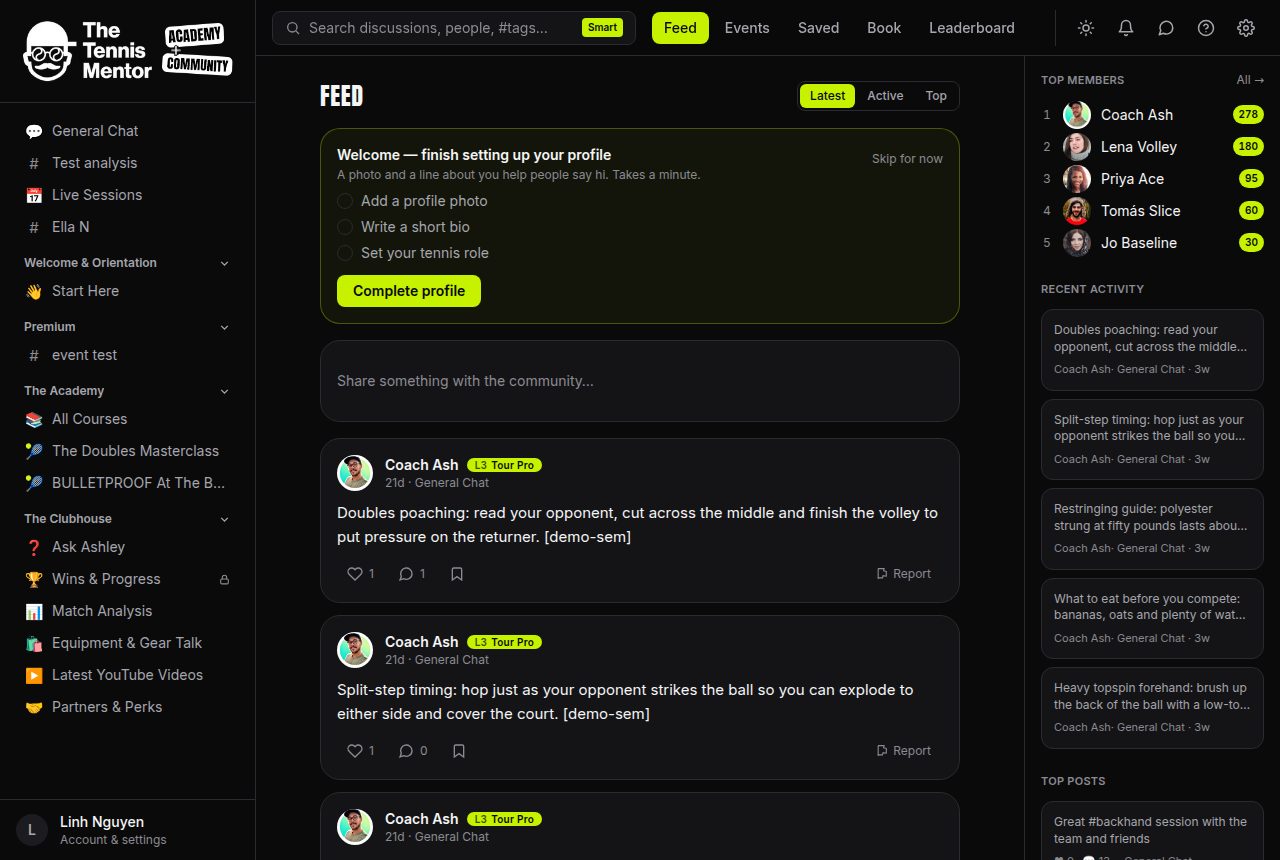
Sorting
At the top of the feed you can switch between Latest (newest first), Active (busy conversations) and Top (most appreciated).
How to write a post
- Tap Share something with the community… at the top of the feed.
- Pick which space to post in (if you belong to more than one).
- Write your post — the toolbar gives you Bold, italic, headings, bullet lists and images (PNG, JPEG, WebP or GIF, up to 5 MB).
- Press Post, or Discard to throw the draft away.
A few nice extras:
- Type @ to mention someone — they'll get a notification.
- Add #hashtags to make your post easy to find in search.
- Paste a YouTube link and the video embeds automatically, with a live preview while you type.
Polls
Tap the poll button in the toolbar to turn your post into a poll. Your text becomes the question; add between 2 and 10 options, tick Allow multiple choices if you like, and set when it Ends (never, or in 1 day to 2 weeks). Results appear once you've voted or the poll closes.
Reactions, comments and saving
- Tap the heart to like a post — tap again to unlike.
- Open a post to comment. Use @ to mention someone, and Reply to answer a specific comment.
- Tap the bookmark icon to save a post; find it later under Saved.
Editing and deleting
Your own posts have a menu with Edit and Delete. Edited posts show a small edited tag. Posts containing an image or a poll can be deleted but not edited.
Pinned posts
Occasionally you'll see a Pinned badge — the community team pins important posts to the top of a space.
Posting and commenting also earn you points — see Points, levels and the leaderboard.