
For members
Events — RSVP and never miss a session
The Events page gathers everything coming up across your spaces, shown in your own timezone and grouped by day.
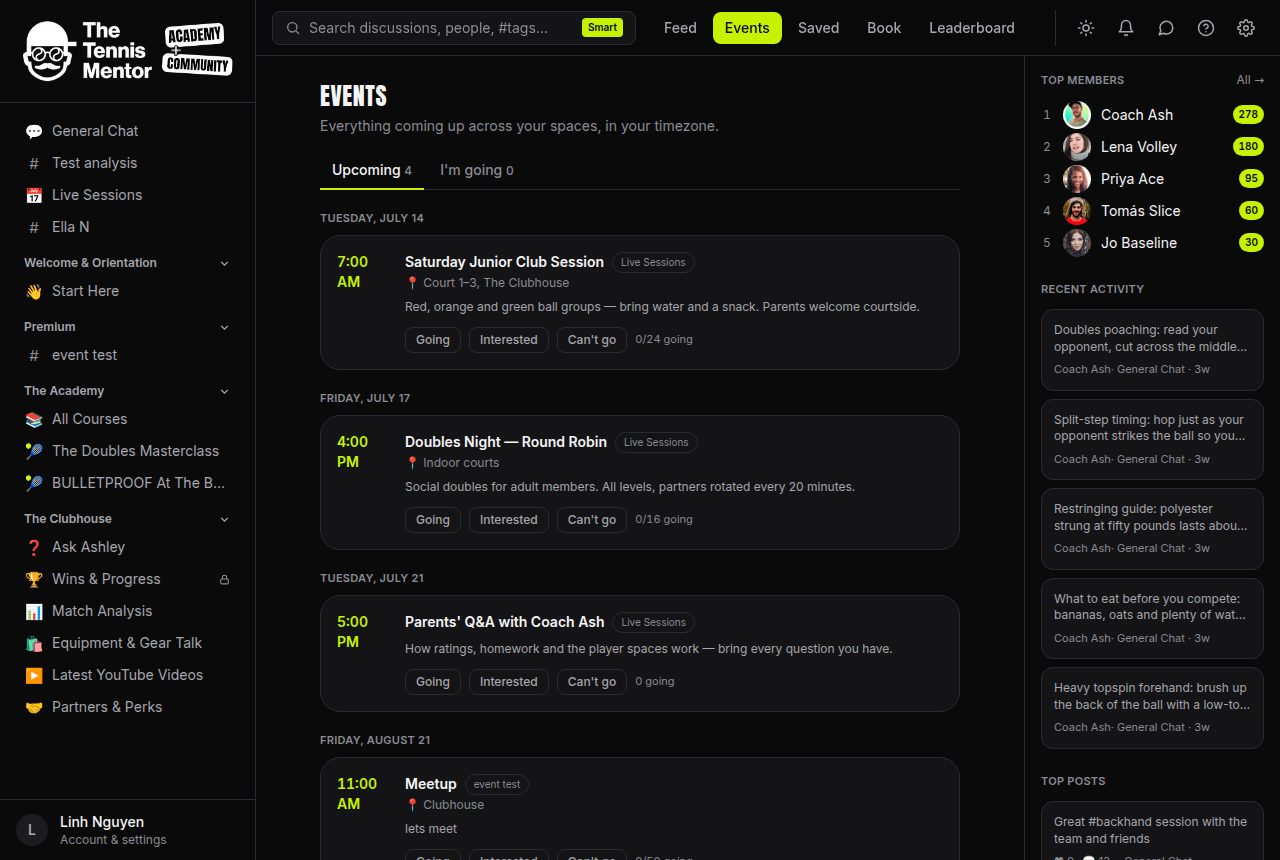
How to RSVP
- Open Events from the top navigation.
- Find the event — each card shows the time, the space it belongs to, the location (if there is one) and a short description.
- Pick your answer: Going, Interested or Can't go.
You can change your answer any time. Use the I'm going tab to see just the events you've said yes (or interested) to.
Capacity and join links
- Some events have limited places — you'll see something like 8/10 going. When an event is full, the Going button is disabled until a spot opens up.
- If an event has an online Join link →, it appears once you've marked yourself as Going.
Event pages
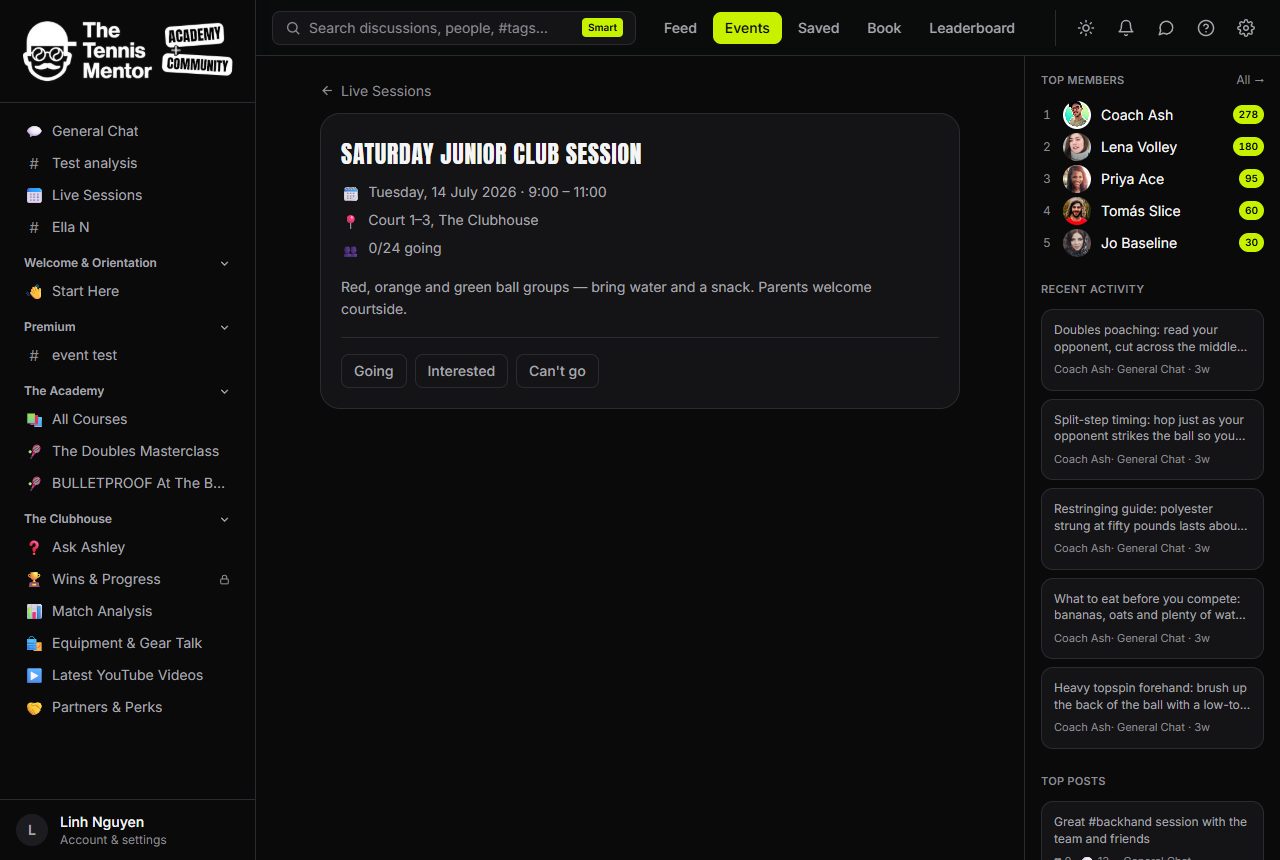
Tap an event's title to open its page, where you'll also see who else is coming, grouped into Going and Interested.
Reminders
You don't need to set anything up:
- When a new event is added to one of your spaces, you'll get a notification.
- If you're marked Going, you'll be reminded 24 hours before the event and again 1 hour before.
Reminders arrive in your Activity feed, and by email too depending on your settings — the Events toggle in Controlling email covers both new events and reminders.
Events also live inside their home space: an events-type space shows the same list, scoped to just that space.